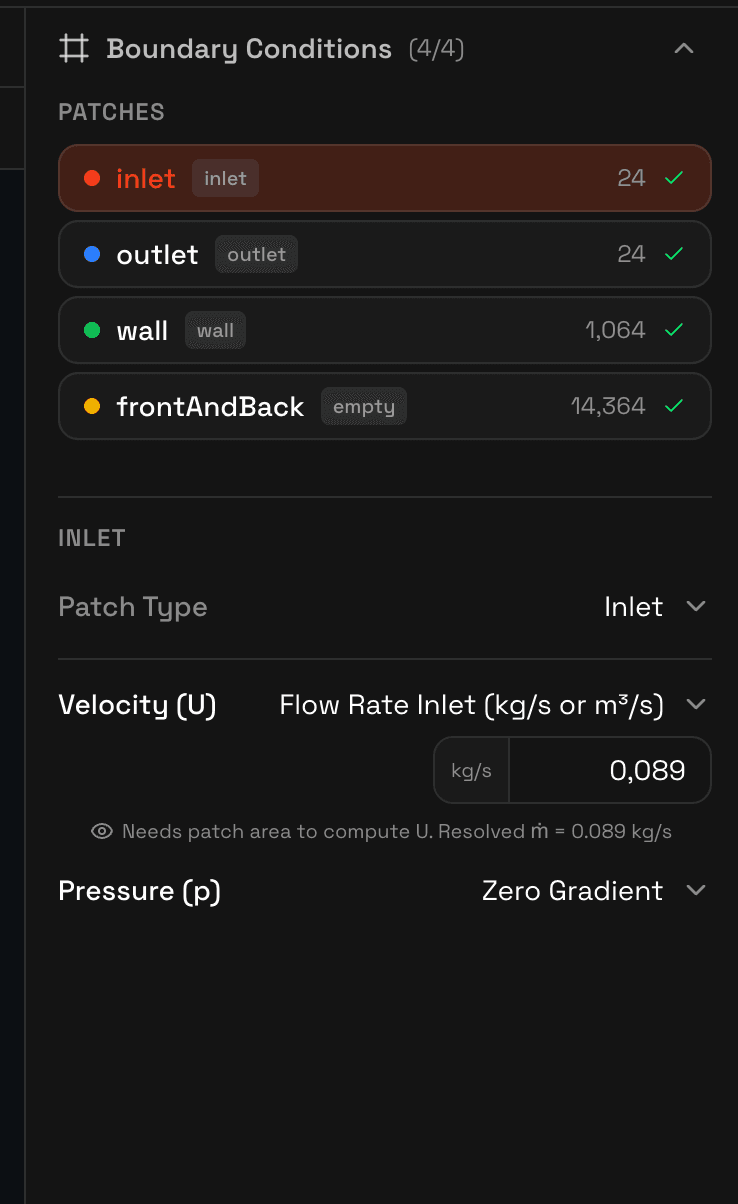
The boundary condition editor shows every mesh patch with its type and lets you configure each field individually. The agent pre-fills values from your problem description, and you can override any of them before running.
Patch types
Each mesh patch is classified into one of the following types. The agent suggests a classification based on patch names and your problem description, but you can change it.
Inlet
Fixed velocity (or mass flow rate), pressure zero gradient
Where fluid enters the domain. The agent computes velocity from mass flow rate if you provide it, or uses the velocity directly.
Outlet
Fixed pressure, velocity zero gradient
Where fluid leaves the domain. Typically set to atmospheric pressure or a downstream gauge pressure.
Wall
No-slip velocity, zero gradient pressure
Solid surfaces. When turbulence is active, wall functions are applied automatically (kqRWallFunction, omegaWallFunction, nutkWallFunction).
Symmetry
Symmetry condition on all fields
Symmetry planes to reduce the computational domain. All fields use the symmetry boundary type.
Empty
Empty condition on all fields
Front and back patches for 2D simulations. Required by OpenFOAM to indicate non-resolved directions.
Per-field configuration
For each patch, the editor shows configurable fields depending on the solver. For an incompressible solver like simpleFoam, you see U and p. For compressible or buoyancy solvers, you also see T, and when turbulence is active, k, omega (or epsilon), nut, and alphat.
Each field has a boundary condition type selector (fixedValue, zeroGradient, fixedFluxPressure, etc.) and a value input when applicable. The available BC types change based on the patch classification and field.
Pre-run validation
Before each run, the agent validates the full boundary condition setup and flags issues:
- Missing required fields on a patch
- Inconsistent dimensions between fields
- Physically unrealistic values (negative pressure, extreme velocities)
- Conflicting boundary types (e.g. fixedValue pressure on all boundaries with no outlet)
Warnings are shown in yellow and allow you to proceed. Errors are shown in red and block the simulation until resolved.